Summary
This short video gives you an summary of the changes in under two minutes.
Logging In
- The same system link and login details as before.
- https://submitdata.abc.org.uk
Company & Contact details
- Check all information is accurate
- Upload new logos and covers if needed - these are used on your certificate and ABC website
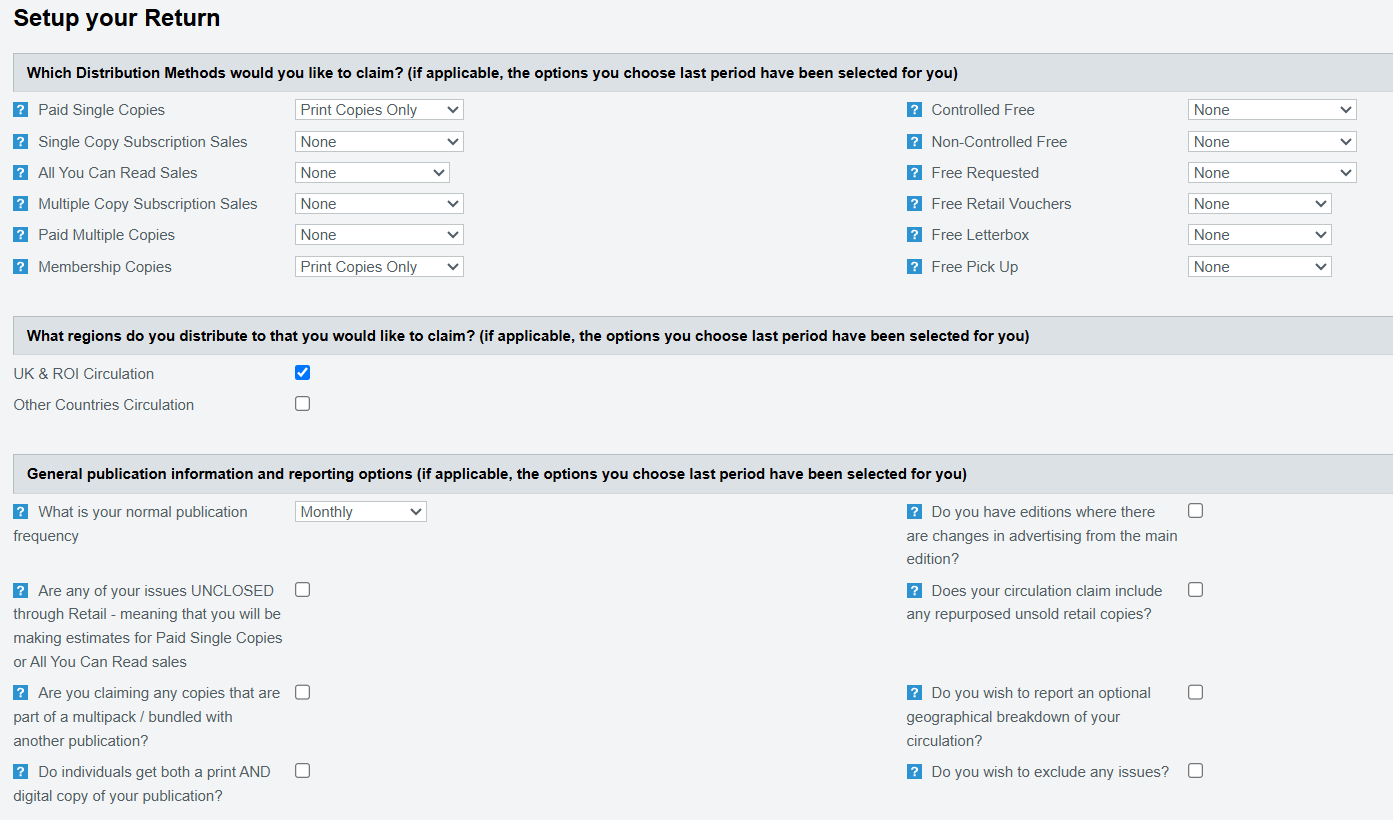
Setup your Return
- Choose the circulation categories you will claim and any optional reporting settings.
- The system adapts subsequent screens so you only see what is relevant.
- We've pre-populated this screen based on your last submission to us.
Review it carefully and add or remove options as needed.
Your Issues
- Enter all issues published during the period (for example, cover dates or issue numbers).
- These details flow through to later sections automatically.

Issue-by-Issue screens
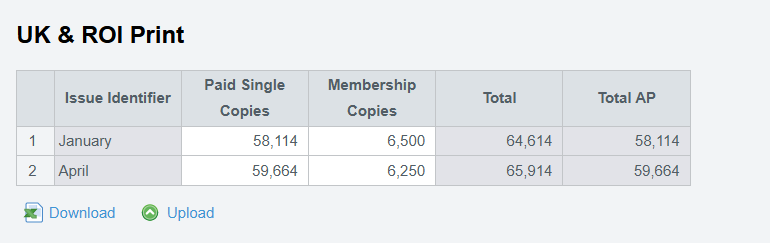
- These are shown based on your setup and issues, grouped by Region and Platform (for example, “UK & ROI – Print” or “Other Countries – Digital”).
- Each page lists one row per issue, with columns for the applicable circulation types you chose.
Category-Specific pages
- If a category requires further information, an additional page appears and must be completed.
- Example: claiming Controlled Free Circulation will show a page to enter your Terms of Control.
Estimates and Actuals
- For Single Copy Sales and All You Can Read Sales, tick the issue as estimated when entering data on the issue by issue screens, if applicable.
- If you estimated figures last period, you are still required to reconcile by providing the actuals.
- We'll work out the adjustments automatically and apply them to the summary screen.
Summary (Calculated Averages)
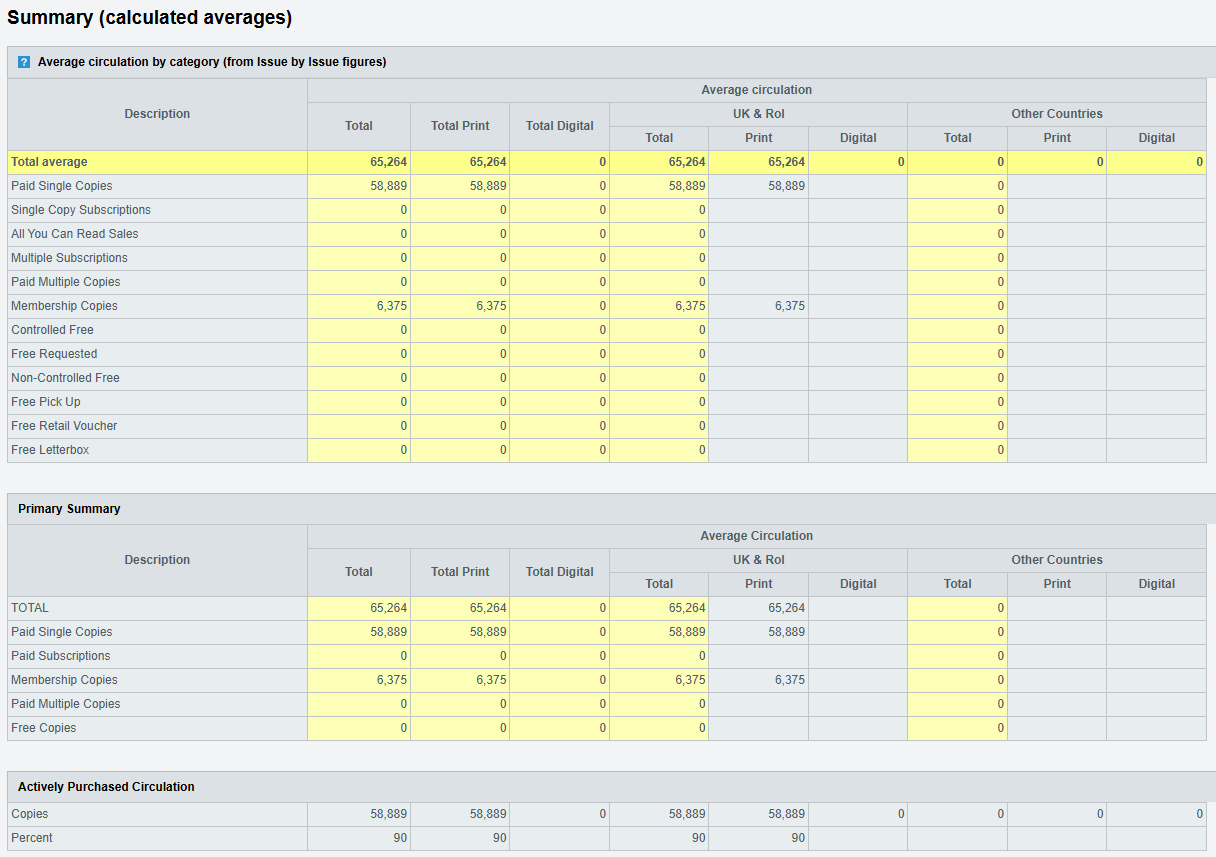
- Once issue-by-issue data is complete, the system calculates all averages for you, including adjustments for estimates and actuals.
- Review the summary page to confirm the breakdowns and averages meet your expectations.
Submission
- When you are satisfied with the data head to the Submission page and submit.
- A draft certificate is generated and sent to you by email.
Saving you progress
- You are required to press Save in order to Save the data to the system. It does not do it automatically. You can navigate pages within the same title without loosing data but we recommend saving regularly and certainly if you plan to leave your session for a while.
Pause Calulations & Table Upload
Here are two time saving features for when you have a lot of rows to fill in.
- Pause Calculations - Press this button and auto-calculations are stopped temporarily allowing you to quickly enter data without it being 'helpful' and adding everything up as you go along. Once you have entered the data - unpause - and everything will then be calculated.
- Table Upload - You can upload Excel spreadsheets in to tables to quickly populate them. The spreadsheet has to be in the correct format. We suggest filling in one row manually in to the return and then "download" the table. This will show you the correct formats. Enter or copy and paste in to the downloaded table and then save and upload to the table within the return.
Help and Support
- Use the Can we help? button on the right-hand side of any screen.
- From there you can contact us by phone or chat, and access the User Guide and other resources.